
What is Adobe Acrobat Reader: Edit PDF; Pros and Cons; Key Features; Functions; How to Use
What is Adobe Acrobat Reader?
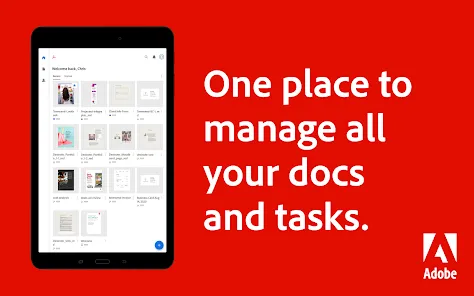
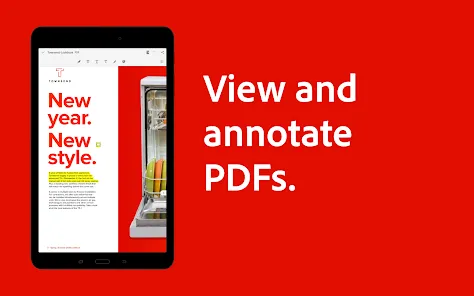
Adobe Acrobat Reader is a free software developed by Adobe Systems that allows users to view, print, and annotate PDF (Portable Document Format) files. First launched in 1993, Adobe Acrobat Reader has become the global standard for viewing PDFs. The program is widely used across businesses, educational institutions, and individuals for opening and interacting with PDF files. While the basic version allows users to simply view and read PDFs, Adobe Acrobat Reader also includes features for adding annotations, highlighting text, filling out forms, and digitally signing documents. Advanced features, such as editing PDFs or converting them into different formats, are available in the premium version known as Adobe Acrobat Pro. With its user-friendly interface, it has remained one of the most essential tools for anyone working with documents in PDF format.
Pros and Cons of Adobe Acrobat Reader
- Pros:
- Widely Used: Adobe Acrobat Reader is the most widely used software for viewing PDFs, ensuring compatibility with almost all PDF documents.
- Free Version: The basic version is free, providing a solid set of features for reading and interacting with PDFs without needing to purchase a subscription.
- Cross-Platform Support: It is available on multiple platforms, including Windows, macOS, Android, and iOS, making it accessible to a wide range of users.
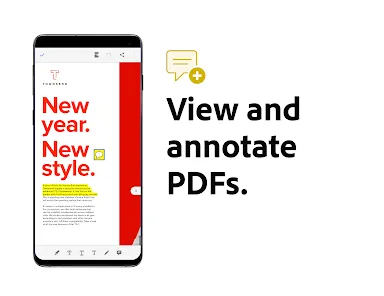
- Annotations and Comments: The software allows users to highlight text, add sticky notes, underline, and strikethrough text, making it useful for review and collaboration.
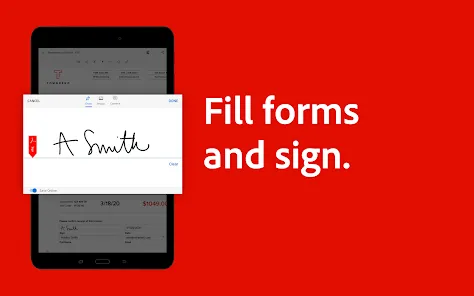
- Form Filling: Users can fill out and save interactive PDF forms directly within the app, making it easy for users to complete applications, surveys, and other forms.
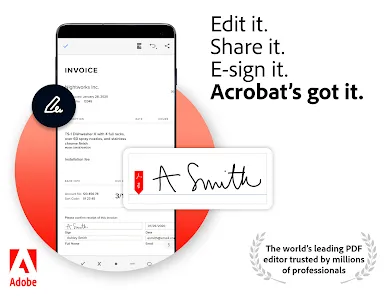
- Digital Signatures: Adobe Acrobat Reader allows users to digitally sign documents, adding a layer of security and verification to PDFs.
- Cons:
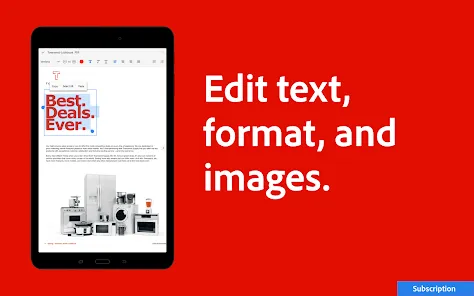
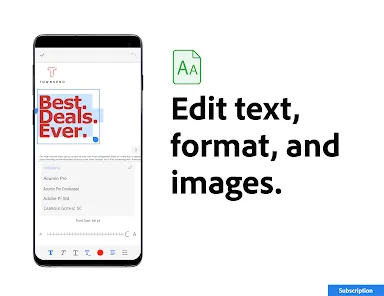
- Limited Editing: While the free version allows annotations and basic form filling, more advanced features like editing text or images are locked behind the paid version, Adobe Acrobat Pro.
- Size and Performance: The software can be relatively large in terms of file size and may use significant system resources, especially on older devices.
- Ads in Free Version: Users of the free version may encounter promotional ads or prompts to upgrade to the premium version, which can be distracting.
- Subscription Model: To unlock advanced features, users need to purchase a subscription to Adobe Acrobat Pro, which can be costly for casual users.
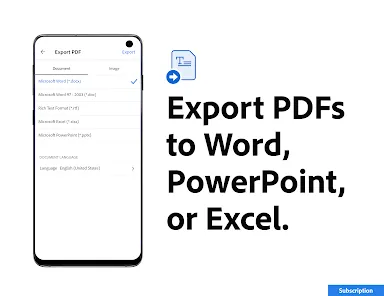
- Limited PDF Conversion: Some users may find that the conversion features are limited unless they upgrade to the premium version.
Key Features of Adobe Acrobat Reader
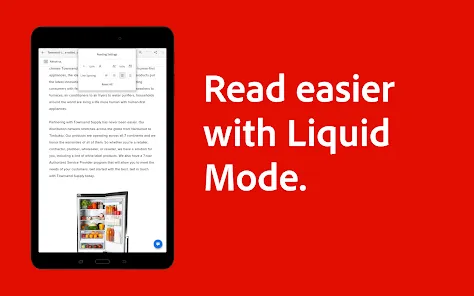
- PDF Viewing: Allows users to open and read PDF files with ease, with support for zooming, rotating, and navigating documents.
- Annotations and Markups: Users can highlight text, add comments, underline, strikethrough, and even draw shapes and lines for better document review.
- Form Filling: Interactive PDF forms can be filled in and saved, including checkboxes, text fields, and signature boxes.
- Digital Signatures: Provides an easy way to digitally sign PDFs with secure encryption, ideal for legal or business documents.
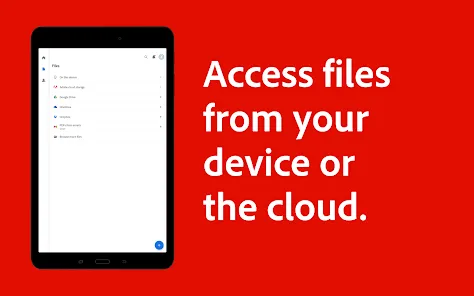
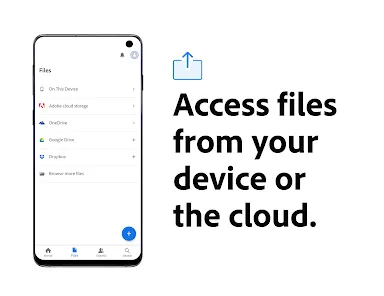
- Cloud Integration: Adobe Acrobat Reader integrates with Adobe Document Cloud, allowing users to access and store documents in the cloud for easy access on multiple devices.
- PDF Printing: Users can print PDF documents directly from the software to a physical printer or save them as virtual PDF files for sharing.
- Search Functionality: The app includes an efficient search feature that allows users to find specific text within PDF documents quickly.
Functions of Adobe Acrobat Reader
- Viewing PDFs: Users can easily open and navigate through PDF documents, including multi-page files and forms.
- Annotating Documents: The ability to highlight text, add notes, and make markups is perfect for collaboration, review, and editing feedback.
- Signing Documents: Users can digitally sign documents, making it easy to complete and approve official paperwork securely.
- Form Completion: You can complete, save, and even submit interactive forms that are designed to be filled in directly within the app.
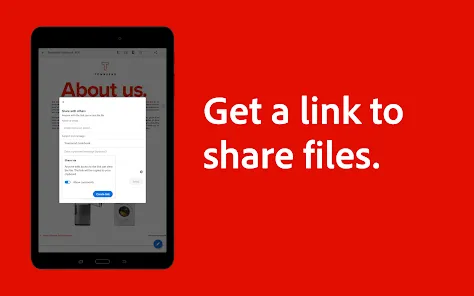
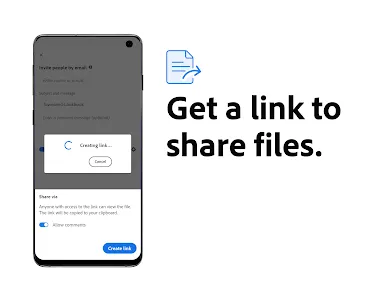
- Sharing and Printing: After viewing, editing, or signing a document, users can easily share PDFs through email or social media, or print them for physical copies.
- Cloud Storage Integration: Sync documents to Adobe Document Cloud or third-party cloud services like Google Drive and Dropbox for easy access across devices.
How to Use Adobe Acrobat Reader
- Step 1 – Download and Install: Download Adobe Acrobat Reader from the official website or app store for your device. Follow the instructions to install it on your system or mobile device.
- Step 2 – Open a PDF: Launch the app and click "File" > "Open" to browse and open a PDF file stored on your computer or cloud storage.
- Step 3 – Navigate the Document: Use the toolbar to zoom in or out, navigate between pages, or rotate the document for better readability.
- Step 4 – Add Annotations: Use the comment and markup tools to highlight text, add sticky notes, underline, or strikethrough text to indicate edits or comments.
- Step 5 – Fill Out Forms: If your document contains fillable form fields, click on them and enter the required information. Save the filled form for your records.
- Step 6 – Sign Documents: If you need to sign a document, use the "Fill & Sign" tool to apply a digital signature to the document securely.
- Step 7 – Save and Share: After completing your tasks, save your changes and either print, share via email, or upload the document to the cloud for easy access across devices.




 0
0