
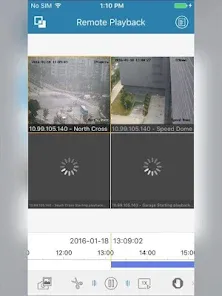
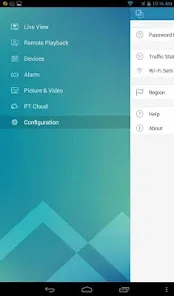
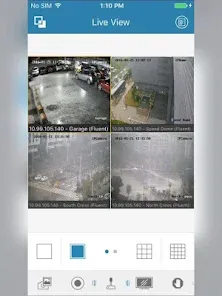
NVMS7000 is a network video management system (NVMS) client application designed to allow users to monitor, record, and manage IP cameras, Digital Video Recorders (DVRs), and Network Video Recorders (NVRs). It enables remote access to live camera feeds, playback of recorded footage, control of PTZ (pan‑tilt‑zoom) cameras, and management of alarm input/output modules. The app supports multiple device profiles and connections, and often targets small to medium scale surveillance setups. Over time, NVMS7000 has been offered for mobile platforms (iOS, Android) as well as desktop/PC clients. In recent years, its developer LTS has encouraged migration toward a newer cloud‑based service called LTS Connect. :contentReference[oaicite:0]{index=0}
Pros & Cons
Pros:
Supports real‑time viewing of multiple camera channels (up to 16 in many versions) on mobile or PC. :contentReference[oaicite:1]{index=1}
Playback of recorded footage, allowing review of events after they occurred. :contentReference[oaicite:2]{index=2}
Device management: supports adding, deleting, and modifying device profiles (cameras, DVRs/NVRs) in one interface. :contentReference[oaicite:3]{index=3}
PTZ control, snapshot support, preset activation, brightness calibration, alarm I/O linking. :contentReference[oaicite:4]{index=4}
Free or low‑cost, making it accessible for small surveillance setups. :contentReference[oaicite:5]{index=5}
Cross‑platform availability on mobile (Android, iOS) and desktop (PC). :contentReference[oaicite:6]{index=6}
Cons:
The mobile NVMS7000 app is being phased out; users are encouraged to migrate to LTS Connect cloud service. :contentReference[oaicite:7]{index=7}
Reported instability and connection failures in certain networks or after firmware/router changes. :contentReference[oaicite:8]{index=8}
Interface and usability issues: playback sync, search, export, and multi‑camera alignment are sometimes awkward. :contentReference[oaicite:9]{index=9}
Security concerns: remote access over the internet may introduce vulnerabilities if not well secured. :contentReference[oaicite:10]{index=10}
Limited advanced features compared to some modern NVR/VMS systems (e.g. AI analytics, deeper integrations) in older versions. :contentReference[oaicite:11]{index=11}
Migrating or reconfiguring the system (e.g. after router change) can be troublesome for non‑technical users. :contentReference[oaicite:12]{index=12}
Key Features
Live view of multiple channels (e.g. up to 16) concurrently. :contentReference[oaicite:13]{index=13}
Playback of recorded video, with ability to browse timeline, fast forward, rewind, and seek. :contentReference[oaicite:14]{index=14}
PTZ (pan, tilt, zoom) control support with touchscreen/swipe or mouse input. :contentReference[oaicite:15]{index=15}
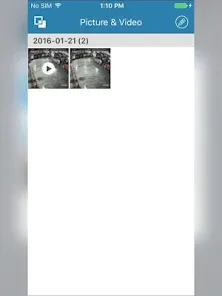
Snapshot function: capture still images from video streams. :contentReference[oaicite:16]{index=16}
Preset activation/configuration: set predefined PTZ positions and switch among them. :contentReference[oaicite:17]{index=17}
Brightness, exposure, and video parameter calibration. :contentReference[oaicite:18]{index=18}
Device profile management: supports up to 100 sets of devices (in mobile app versions). :contentReference[oaicite:19]{index=19}
Alarm input/output linkage: connect sensors or triggers to actions (e.g. recording, alerts). :contentReference[oaicite:20]{index=20}
Support for PT‑Cloud / cloud push notifications under newer service model (LTS Connect). :contentReference[oaicite:21]{index=21}
Batch backup/restore configuration via QR codes (in more recent app versions). :contentReference[oaicite:22]{index=22}
Support for behavior analysis, fire source detection, thermal imaging in compatible cameras. :contentReference[oaicite:23]{index=23}
Multi‑platform support: mobile (Android/iOS) and desktop/PC clients. :contentReference[oaicite:24]{index=24}
Functions (Capabilities & Use Cases)
Live surveillance: monitor real‑time camera feeds remotely from anywhere (if network is configured).
Video playback: review past recordings, examine event times, detect incidents or intrusions.
Zooming and panning: with PTZ cameras, adjust the camera view dynamically during live or playback mode.
Snapshot captures: save still frame images for evidence or quick reference.
Alarm linkage: trigger recording, alerts, or outputs (e.g. sirens, lights) when motion or sensor event occurs.
Profile switching: switch between different DVR/NVR/CCTV systems under one app interface.
Remote parameter adjustment: change brightness, contrast, bitrate settings on the fly as needed.
Backup and restore: export configuration files or settings and reimport when needed (e.g. after reset). :contentReference[oaicite:25]{index=25}
Behavioral analytics: when supported by camera hardware, features like fire detection or object tracking may be available. :contentReference[oaicite:26]{index=26}
Thermal detection: in thermal camera setups, measure temperature, detect heat sources, or threshold based alerts. :contentReference[oaicite:27]{index=27}
Cross‑device synchronization: manage multiple devices from one dashboard (especially in PC client mode).
Exporting video / logs: extract recordings or logs for external review or storage. (Though some users report limitations here.) :contentReference[oaicite:28]{index=28}
Access control module integration: in PC version, support card readers, door control or access logs. :contentReference[oaicite:29]{index=29}
How to Use (Step‑by‑Step Guide)
Click the button "Check All Versions" below to download and install it.
Choose the version you need: mobile (Android/iOS) or PC/desktop client. Download and install NVMS7000 from official or trusted source. :contentReference[oaicite:30]{index=30}
Launch the app and, if required, create or log into an account (or skip cloud login if local mode). In mobile versions, you may be prompted to migrate to LTS Connect. :contentReference[oaicite:31]{index=31}
Add your device (DVR, NVR, or IP camera) to the app by:
Entering the device’s IP address, port, username, and password.
Using P2P / QR code scanning if supported. :contentReference[oaicite:32]{index=32}
Selecting region or cloud service if connecting through cloud mode. :contentReference[oaicite:33]{index=33}
Once device is added, select it and open “Live View” mode:
Choose channel layouts (e.g. 1, 4, 9, 16 view) to view multiple cameras simultaneously.
Use touch or mouse to swipe / drag / zoom / pan PTZ cameras within view. :contentReference[oaicite:34]{index=34}
To review recorded footage:
Enter “Playback” mode, select time and date range, and choose the camera channel(s).
Use play, pause, forward, rewind, or seek controls to go through timeline.
If desired, export or save a clip or snapshot from the playback view (if supported). :contentReference[oaicite:35]{index=35}
PTZ and presets:
If a camera supports PTZ, steer it manually with directional controls.
Set preset positions (e.g. “Entrance,” “Lobby,” etc.), and call them via preset buttons. :contentReference[oaicite:36]{index=36}
Alarm linkage / sensor events:
Configure motion detection, external sensor inputs, or thresholds in your DVR/NVR network settings.
Link these inputs to functions in NVMS7000 (e.g. prompt alert, recording, or snapshot). :contentReference[oaicite:37]{index=37}
Camera settings and calibration:
In live or config mode, open camera parameters: exposure, brightness, contrast, bitrate, resolution.
Adjust settings while previewing to find optimal image quality versus bandwidth tradeoffs. :contentReference[oaicite:38]{index=38}
Backup / restore configuration:
Export your device list or settings to a file (or via QR code) as backup.
Later, import or restore to reconfigure devices quickly after resets. :contentReference[oaicite:39]{index=39}
Migrate to cloud (if applicable):
If NVMS7000’s mobile app is being deprecated, install LTS Connect mobile app. :contentReference[oaicite:40]{index=40}
Register a cloud account, enable PT‑Cloud settings on your NVR/DVR or system, and add devices into the cloud system. :contentReference[oaicite:41]{index=41}
Operate via cloud for push notifications, remote access, and easier management. :contentReference[oaicite:42]{index=42}
Troubleshooting tips:
If remote viewing fails, check router port forwarding or NAT settings. (Many users experience issues when outside the local network.) :contentReference[oaicite:43]{index=43}
If cameras disappear after network change, remove and re‑add them via QR or IP method. :contentReference[oaicite:44]{index=44}
Ensure firmware compatibility and that encryption or firewall rules aren’t blocking the app. :contentReference[oaicite:45]{index=45}
If migrating to LTS Connect fails, ensure the DVR/NVR supports PT‑Cloud and is properly set in device settings. :contentReference[oaicite:46]{index=46}


 0
0