

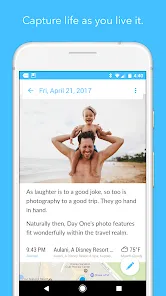
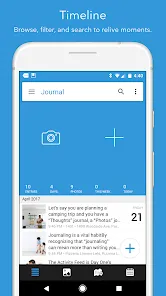
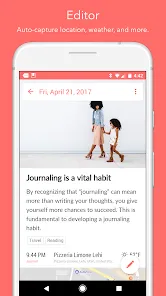
Day One Journal: Private Diary is a digital journaling application built to create a secure, elegant space for recording thoughts, experiences, and life moments. It operates across platforms—iOS, macOS, Android, and web—allowing users to write entries, attach multimedia (photos, audio, video), track metadata like location, weather, and steps, and revisit past memories with features like “On This Day.” It emphasizes privacy with end-to-end encryption, passcode or biometric locks, and automatic backups. Thanks to its clean interface, markdown support, cross‑device sync, reminders, and reminders to build consistency, it’s favored by users wanting a modern, secure replacement for paper journaling. :contentReference[oaicite:0]{index=0}
Pros & Cons
- Pros:
- Strong privacy and security: entries are end‑to‑end encrypted and the app supports passcode or biometric locks. :contentReference[oaicite:1]{index=1}
- Cross‑platform sync and accessibility: use it on smartphones, tablets, desktops, and web. :contentReference[oaicite:2]{index=2}
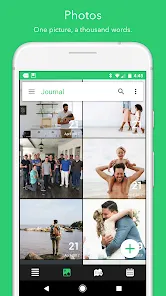
- Rich media support: supports photos, videos, audio recordings, handwritten/drawing entries, and metadata (location, weather, steps). :contentReference[oaicite:3]{index=3}
- Elegant UI and usability: clean design, markdown support, multiple journals, templates, tags, calendar and map views. :contentReference[oaicite:4]{index=4}
- Memory & revisit tools: “On This Day,” search filters, tags, favorites help rediscovery of past entries. :contentReference[oaicite:5]{index=5}
- Shared Journals (optional): ability to share certain journals securely with family/friends (Premium feature). :contentReference[oaicite:6]{index=6}
- Cons:
- Premium is needed for many key features: unlimited media, multiple journals, shared journals, etc. :contentReference[oaicite:7]{index=7}
- Sync issues, crashes, or bugs reported by users (especially on Android). :contentReference[oaicite:8]{index=8}
- Some features are not equally available on all platforms; platform parity can lag. :contentReference[oaicite:9]{index=9}
- Search may be limited (e.g. by tags or filtering) per user reports. :contentReference[oaicite:10]{index=10}
- No selective per‑entry lock (only whole app or journals). :contentReference[oaicite:11]{index=11}
- Security concerns raised: lack of two‑factor auth, local encryption on device, web session logout behavior. :contentReference[oaicite:12]{index=12}
Key Features
- Unlimited text entries with rich text / Markdown support. :contentReference[oaicite:13]{index=13}
- Media attachments: photos, videos, audio recordings (Premium unlocks). :contentReference[oaicite:14]{index=14}
- Handwritten/drawing input (Apple Pencil or stylus) in entries. :contentReference[oaicite:15]{index=15}
- Automatic metadata: location, weather, moon phase, step count, motion data. :contentReference[oaicite:16]{index=16}
- Cross‑device sync and automatic backup to private servers. :contentReference[oaicite:17]{index=17}
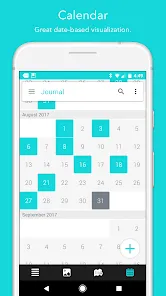
- Tags, favorites, filtering, calendar and timeline views for organization. :contentReference[oaicite:18]{index=18}
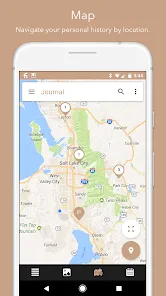
- Map view to display entries by geographic location. :contentReference[oaicite:19]{index=19}
- On This Day: revisit past entries from the same calendar date. :contentReference[oaicite:20]{index=20}
- Templates and daily prompts to guide journaling. :contentReference[oaicite:21]{index=21}
- Reminders & habit tracking: push reminders, streaks, journaling cadence. :contentReference[oaicite:22]{index=22}
- Export options: PDF, plain text, etc. :contentReference[oaicite:23]{index=23}
- Shared Journals (Premium): invite others to view/comment entries with encryption. :contentReference[oaicite:24]{index=24}
- Conceal content: hide entries in a journal timeline (journal level). :contentReference[oaicite:25]{index=25}
Functions (What It Lets You Do)
- Create daily or occasional journal entries with text content.
- Attach media—photos, video clips, or voice/audio—to complement your writing.
- Draw, handwrite, or sketch within entries (when supported on your device).
- Automatically capture and embed metadata: time, date, weather, location, step count.
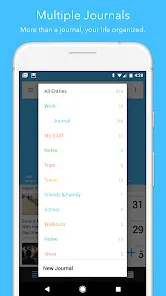
- Organize entries using tags, favorites, filtering, templates, or multiple journals.
- View entries in calendar, timeline, or map modes to visualize patterns over time.
- Revisit memories via “On This Day” reminders that bring up past entries from that date.
- Receive reminders or notifications prompting you to journal and maintain writing habits.
- Search and filter across entries by keyword, tags, date, journals, and metadata.
- Export entries or journals into PDF or text for archival or offline access.
- Sync automatically across devices, so you can write on one device and continue on another.
- Optionally share a journal (not your entire private journals) with up to 30 people via Shared Journals. :contentReference[oaicite:26]{index=26}
- Hide or conceal entries in a journal timeline to prevent immediate viewing. :contentReference[oaicite:27]{index=27}
How to Use Day One Journal: Private Diary (Step by Step)
- Download & set up account:
- Get Day One from your device’s app store (iOS, Android) or use the web/desktop version. :contentReference[oaicite:28]{index=28}
- Sign up or log in; enable sync and backup. :contentReference[oaicite:29]{index=29}
- Set up a passcode, Face ID, or Touch ID for app security. :contentReference[oaicite:30]{index=30}
- Create an entry:
- Tap the “+” or “New Entry” button to start writing.
- Enter text using the keyboard or markdown for styling (bold, italics, lists). :contentReference[oaicite:31]{index=31}
- Add media—photos, videos, or voice recordings (if your plan supports it). :contentReference[oaicite:32]{index=32}
- Optionally draw or handwrite using stylus/finger. :contentReference[oaicite:33]{index=33}
- Metadata like date, weather, location, moon phase, and steps will be auto‑embedded. :contentReference[oaicite:34]{index=34}
- Organize & tag:
- Add tags or favorites to entries to make them easier to filter or revisit. :contentReference[oaicite:35]{index=35}
- Move or assign entries to different journals (if you have multiple). :contentReference[oaicite:36]{index=36}
- Use templates or prompts if you prefer guided entries. :contentReference[oaicite:37]{index=37}
- View and navigate:
- Switch between calendar, timeline, or map view to explore past entries. :contentReference[oaicite:38]{index=38}
- Tap “On This Day” to see what you wrote on this date in previous years. :contentReference[oaicite:39]{index=39}
- Search by keyword, tags, journals, or date to quickly find entries. :contentReference[oaicite:40]{index=40}
- Reminders and routine:
<
- Enable journaling reminders to receive notifications. :contentReference[oaicite:41]{index=41}
- Track your journaling streaks to build consistency. :contentReference[oaicite:42]{index=42}
- Export or backup:
<
- Export entries or journals to PDF or plain text. :contentReference[oaicite:43]{index=43}
- Back up automatically via the cloud service or manually via export. :contentReference[oaicite:44]{index=44}
- Use Shared Journals (if desired):
- If you have Premium, create a Shared Journal and invite up to 30 people. :contentReference[oaicite:45]{index=45}
- When writing in a Shared Journal, entries will be visible to those invited; private journals remain private. :contentReference[oaicite:46]{index=46}
- Manage membership, comments, and access settings. :contentReference[oaicite:47]{index=47}
- Conceal content (optional):
- Set a journal’s “Conceal Content” setting to hide entries in the timeline until tapped. :contentReference[oaicite:48]{index=48}
- Understand that conceal is at journal level, not per entry. :contentReference[oaicite:49]{index=49}
- Maintain & update:
- Keep the app updated to get new features and fixes. :contentReference[oaicite:50]{index=50}
- Review your archive and exports periodically for offline backups.
- Monitor sync logs or errors, especially on Android, and troubleshoot as needed. :contentReference[oaicite:51]{index=51}


 0
0