
Google Earth is a virtual globe, map, and geographic information program developed by Google. It provides users with a 3D representation of Earth based on satellite imagery, aerial photography, and GIS (Geographic Information System) data. By integrating detailed imagery with geographic data, Google Earth allows users to explore the world from their computer or mobile device, zooming in from a global view down to street level. It is used for a variety of purposes, from casual exploration and education to urban planning, environmental studies, and travel planning. Google Earth combines satellite views with street maps, terrain data, and 3D buildings, giving users an immersive experience of the planet's surface and enabling detailed visual exploration of locations worldwide.
Pros and Cons
Pros:
Extensive global coverage with high-resolution satellite imagery.
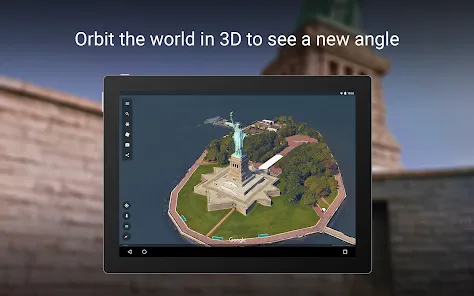
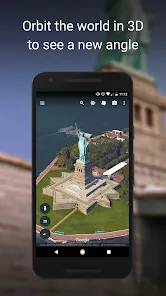
3D visualization of landscapes, cities, and buildings enhances user experience.
Free to use and accessible on multiple platforms including web and mobile.
Rich educational tool for geography, history, and environmental science.
Allows virtual travel and exploration without leaving home.
Integration with layers such as roads, borders, and photos adds context.
Tools for creating and sharing custom maps and tours.
Cons:
Satellite imagery may not always be up-to-date or uniformly detailed everywhere.
Requires a stable internet connection for smooth navigation and data loading.
3D rendering can be resource-intensive, causing lag on older or low-spec devices.
Some privacy concerns with detailed imagery of private properties.
Limited offline functionality compared to some other mapping apps.
Learning curve for advanced features such as KML/KMZ file integration.
Key Features
High-resolution satellite and aerial imagery with 3D terrain and buildings.
Street View integration for immersive ground-level exploration.
Historical imagery allowing users to see changes over time in certain locations.
Custom map creation with placemarks, polygons, and routes using KML files.
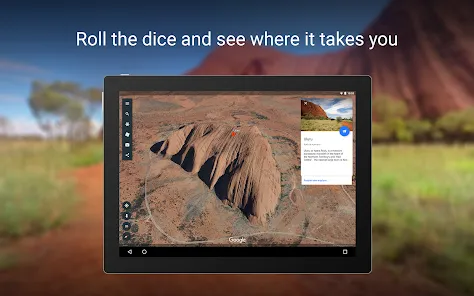
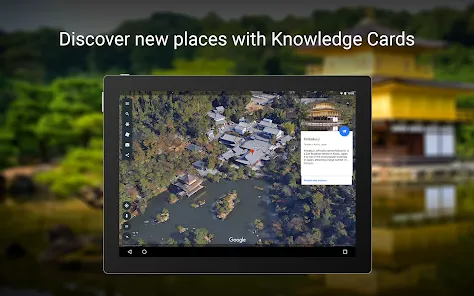
Voyager tool offering guided tours on various topics such as nature, culture, and history.
Measurement tools for calculating distances and areas.
Search function with autocomplete for quick access to places worldwide.
Integration with Google Maps for directions and additional geographic data.
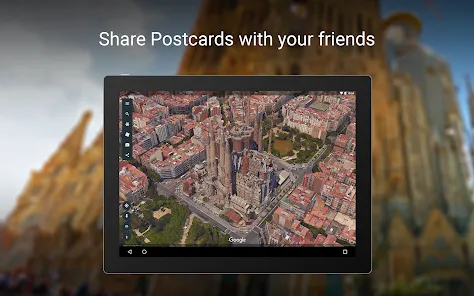
Ability to save favorite locations and share maps with others.
Available across devices: desktop, web browser, Android, and iOS apps.
Functions
Explore any location on Earth with detailed zoom and 3D views.
View street-level imagery to get a real-world perspective of places.
Create custom maps with annotations, routes, and shapes for personal or professional use.
Access curated content and stories through the Voyager feature.
Measure distances between points or areas on the map.
Overlay additional data layers such as borders, roads, and photos.
Save and organize favorite places for quick reference.
Export and import geographic data using standard KML/KMZ formats.
Share maps and tours with friends, family, or colleagues.
Use historical imagery to analyze geographic or environmental changes.
How to Use Google Earth
Click the button "Check All Versions" below to download and install it.
Step 1: Visit the Google Earth website or download the app on your desktop or mobile device.
Step 2: Open the app and use the search bar to enter a location, address, or place name you want to explore.
Step 3: Navigate the globe by zooming in and out or dragging the map to change your view.
Step 4: Click on the 3D button to enable 3D terrain and building views for a more immersive experience.
Step 5: Use Street View by dragging the Pegman icon onto a blue-highlighted road or location.
Step 6: Explore the Voyager feature for guided tours and interactive stories about various topics and places.
Step 7: Use the measurement tool to calculate distances or areas between points on the map.
Step 8: Create custom placemarks, polygons, or routes by using the “Projects” feature or importing KML/KMZ files.
Step 9: Save your favorite places and share your created maps or tours via links or social media.
Step 10: Customize map layers by toggling borders, roads, labels, and photos to enhance your viewing experience.


 0
0