What is Microsoft Remote Desktop
Microsoft Remote Desktop is a software application developed by Microsoft that enables users to remotely connect to and control another Windows computer or virtual desktop over the internet. It allows access to files, apps, and system resources as if the user were physically present at the remote computer. The tool is commonly used for remote work, IT support, and business continuity, offering secure connectivity and integration with Microsoft Azure and Windows environments. It supports both personal and enterprise use, providing seamless access across devices such as PCs, Macs, Android, and iOS. Through encrypted connections and intuitive interfaces, Microsoft Remote Desktop ensures productive remote sessions with minimal lag and reliable performance.
Pros and Cons of Microsoft Remote Desktop
- Pros:
- Provides secure access through encrypted remote connections using Network Level Authentication (NLA).
- Integrates deeply with Windows systems, ensuring smooth compatibility with most Microsoft environments.
- Allows full desktop control, enabling users to manage applications, transfer files, and perform administrative tasks remotely.
- Offers multi-session support, allowing simultaneous connections for enterprise-level management.
- Includes cross-platform compatibility, supporting Windows, macOS, Android, and iOS devices.
- Ideal for remote work, troubleshooting, and IT support without requiring physical presence.
- Allows centralized management through Remote Desktop Services (RDS) or Azure Virtual Desktop.
- Free to use for Windows Pro, Enterprise, and Server users, eliminating additional licensing costs.
- Offers reliable performance and stable connectivity for long-term sessions.
- Supports clipboard synchronization and peripheral device redirection such as printers and drives.
- Cons:
- Limited features for Windows Home users since RDP hosting is not available in that edition.
- Requires stable internet bandwidth; performance drops with poor connection quality.
- Can be complex to set up for non-technical users, especially in configuring firewalls or network settings.
- Security risks may arise if remote access is not properly managed or secured.
- Third-party solutions sometimes offer more user-friendly interfaces or additional features.
- May experience latency when accessing systems with high graphical workloads.
- Not suitable for intensive multimedia tasks such as gaming or video editing.
- Depends on host computer availability; if the host shuts down, remote access fails.
- Some features are restricted to Windows Server or Azure environments.
- Occasional disconnection or timeout issues on unstable networks.
Key Features of Microsoft Remote Desktop
- Secure Remote Access: Provides encrypted connections and authentication protocols to safeguard data.
- Multi-Device Compatibility: Works across desktops, laptops, tablets, and smartphones.
- Resource Redirection: Allows access to local printers, drives, and audio during remote sessions.
- Multi-Monitor Support: Enables use of multiple displays for enhanced productivity.
- Azure Virtual Desktop Integration: Connects seamlessly with Microsoft’s cloud environment for virtualized desktops.
- Session Management: Supports multiple simultaneous sessions for enterprise administrators.
- Clipboard Sharing: Enables copying and pasting between local and remote systems.
- Custom Display Settings: Adjusts resolution and scaling for smoother remote experience.
- Gateway Access: Connects securely through Remote Desktop Gateway without direct network exposure.
- Remote App Access: Lets users open specific applications remotely without launching the entire desktop.
Functions of Microsoft Remote Desktop
- Facilitates secure access to a remote computer’s desktop environment.
- Allows IT professionals to manage, configure, and troubleshoot systems from remote locations.
- Supports remote file transfer between local and host systems.
- Enhances productivity for remote employees by enabling access to company resources.
- Integrates with Active Directory for user authentication and access control.
- Provides administrators with control over user sessions and performance monitoring.
- Permits software installation, updates, and maintenance remotely.
- Optimizes bandwidth usage through adaptive compression and caching.
- Facilitates remote printing, audio redirection, and hardware integration.
- Serves as a foundation for virtual desktop infrastructure (VDI) solutions within enterprises.
How to Use Microsoft Remote Desktop
- Ensure the remote computer is running Windows Pro, Enterprise, or Server editions.
- Enable Remote Desktop by navigating to Settings > System > Remote Desktop and turning on the option.
- Note down the PC name or IP address displayed under the “How to connect to this PC” section.
- On the client device, install the Microsoft Remote Desktop app from the Microsoft Store, Mac App Store, or Google Play.
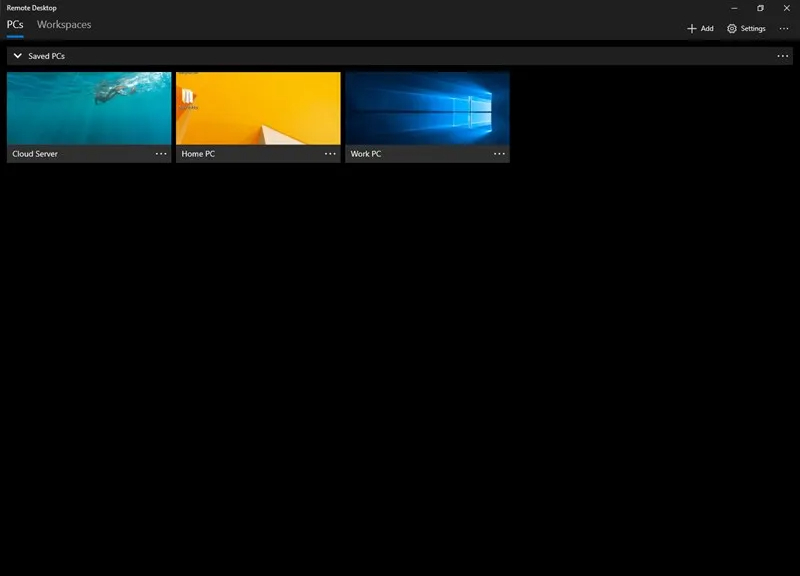
- Open the app and click “Add PC.” Enter the PC name or IP address of the remote computer.
- Input the login credentials (username and password) of the host machine.
- Click “Connect” to initiate the session and gain access to the remote desktop.
- Adjust session settings like display resolution, sound, and peripheral access as needed.
- Use the top toolbar in the app to switch between windows, minimize, or disconnect the session.
- For enterprise environments, configure Remote Desktop Gateway or Azure Virtual Desktop for secure multi-user access.


 0
0