

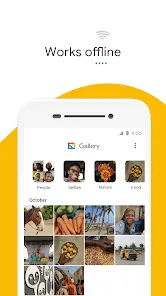
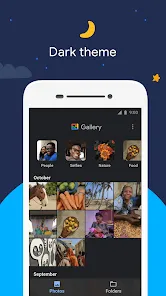
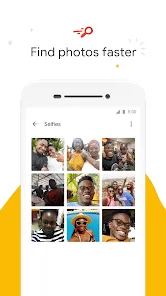
Gallery is a digital application designed for organizing, viewing, and managing photos and videos on smartphones, tablets, and computers. It serves as a centralized hub where users can easily access their media files, sort them into albums, and perform basic editing tasks. The app supports various image and video formats, allowing seamless browsing and sharing with friends and family. Gallery apps often include features like automatic categorization, facial recognition, and cloud backup integration, enhancing the user experience. With its intuitive interface, Gallery helps users efficiently manage large media libraries, preserve memories, and quickly find desired photos or videos without hassle. It is a standard feature on many devices, making media management accessible and convenient.
Pros and Cons
Pros:
Easy access to all photos and videos in one place.
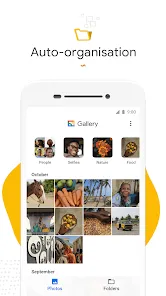
Supports organization with albums, tags, and folders.
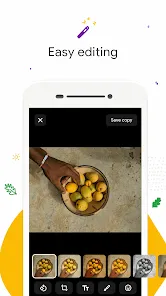
Basic editing tools like cropping, filters, and adjustments included.
Fast and smooth navigation through large media libraries.
Integration with cloud storage for backup and sync.
Sharing options directly from the app to social media or messaging apps.
Automatic categorization and facial recognition features available in some versions.
Usually pre-installed and optimized for device performance.
Cons:
Limited advanced editing tools compared to dedicated photo editors.
Some apps can be cluttered with ads or unnecessary features.
Occasional lag when handling extremely large media libraries.
Privacy concerns with automatic facial recognition or cloud syncing.
Not all gallery apps support all media file formats equally.
Backup features often require additional storage subscriptions.
Customization options may be limited depending on the app.
Some apps have inconsistent updates or limited developer support.
Key Features
Organizes photos and videos into albums, folders, and timelines.
Basic photo editing tools such as crop, rotate, filters, and brightness adjustment.
Slideshow mode to view photos in a continuous stream.
Search functionality to quickly find images by date, location, or tags.
Facial recognition and object tagging to group similar photos automatically.
Cloud integration for backup, synchronization, and easy sharing across devices.
Support for multiple media formats including JPG, PNG, GIF, MP4, and more.
Sharing options via social media, email, or messaging apps.
Recycle bin/trash feature to recover accidentally deleted files.
Customizable slideshow and viewing modes to enhance user experience.
Functions
Media Browsing: Quickly scroll through and view all images and videos stored on the device.
Organization: Create, rename, and delete albums or folders to categorize media files.
Editing: Perform simple edits like cropping, rotating, and applying filters.
Search and Filter: Locate photos by date, location, or tags with an intelligent search function.
Facial and Object Recognition: Automatically group photos featuring the same people or objects.
Backup and Sync: Upload media to cloud services to free device storage and access files on multiple devices.
Sharing: Easily share images and videos through messaging apps, social media, or email.
Slideshow Presentation: Display photos in full-screen slideshow mode with customizable intervals.
Recycle Bin: Temporarily store deleted files to allow recovery if needed.
Settings Customization: Adjust viewing preferences, sorting options, and privacy settings.
How to Use Gallery
Click the button "Check All Versions" below to download and install it.
Open the Gallery app pre-installed on your smartphone or tablet.
Browse through the default view showing all your photos and videos.
Create albums by selecting multiple photos and choosing the “Add to Album” option.
Use the search bar to find images by keywords, dates, or locations.
Edit photos by selecting one and tapping the edit icon to crop, adjust, or apply filters.
Share images by selecting them and choosing the share button, then select the desired app or contact.
Enable cloud backup in settings to automatically sync media with your cloud account.
Access the recycle bin to restore deleted photos within a specific timeframe.
Adjust app settings to customize how media is displayed and managed.
Regularly update the app or your device to ensure compatibility and access to new features.



 0
0