

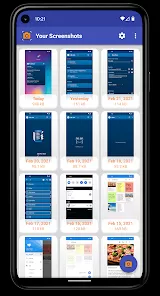
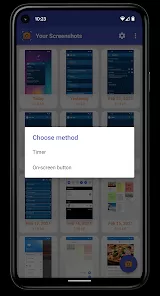
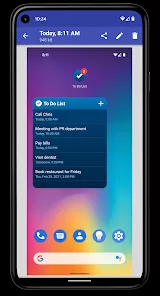
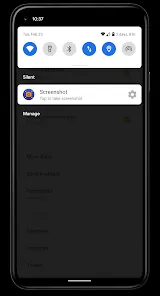
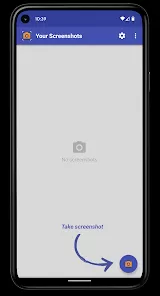
A screenshot is a digital image capturing the visible content displayed on a computer, smartphone, or tablet screen at a specific moment in time. It serves as a quick way to save, share, or document exactly what is shown on the screen, whether it's a webpage, application, message, or error notification. Screenshots are widely used for communication, troubleshooting, education, and record-keeping purposes. They provide a simple means to visually share information without the need to explain it in words. Available across virtually all devices and operating systems, screenshots can be taken using built-in keyboard shortcuts, buttons, or software tools, making them an essential feature in modern digital interactions.
Pros and Cons
Pros:
Instantly captures exact visual information on screen.
Helps in documenting errors, tutorials, or proofs.
Easy to share via email, messaging apps, or social media.
Supports communication by visually conveying information.
Built into most devices without needing extra software.
Can capture entire screens or specific windows/areas.
Cons:
Can expose sensitive or private information if shared carelessly.
Large number of screenshots can clutter device storage.
Editing screenshots might require additional software.
Quality can vary depending on device resolution and method used.
Does not capture dynamic elements like videos or animations effectively.
Key Features
Capture full screen, active window, or selected areas.
Support for various file formats like PNG, JPEG, or BMP.
Built-in editing tools for cropping, annotating, or highlighting.
Easy sharing options integrated with apps and cloud services.
Keyboard shortcuts and hardware buttons for quick capture.
Support for scrolling screenshots to capture longer content.
Automatic saving to predefined folders or clipboard.
Functions
Capture static images of screen content for reference or sharing.
Enable users to document software issues or bugs with visuals.
Provide a way to save important information such as receipts or messages.
Assist in creating educational or instructional materials with screenshots.
Support communication by allowing visual feedback or proof.
Allow quick sharing on social media, email, or collaboration tools.
Facilitate archiving and organizing visual data on devices.
How to Use Screenshots
On Windows: Press
PrtScnto capture the full screen orAlt + PrtScnto capture the active window. UseWindows + Shift + Sfor snipping specific areas.On macOS: Press
Command + Shift + 3to capture the full screen orCommand + Shift + 4to select a specific portion.On Android: Usually press the
Power + Volume Downbuttons simultaneously.On iOS: Press the
Side (or Home) + Volume Upbuttons together.Editing: Use built-in editors or third-party apps to crop, annotate, or highlight parts of the screenshot.
Saving: Screenshots typically save automatically to the device’s photo gallery or a dedicated folder.
Sharing: Share screenshots via messaging apps, email, cloud services, or social media directly from your device.
Organizing: Regularly manage and delete unnecessary screenshots to avoid clutter and free up storage.
Use specialized tools: For advanced needs, consider apps like Snagit or Lightshot that offer enhanced capturing and editing features.



 0
0