

Android Auto is a mobile app developed by Google designed to provide a safer and more convenient way to use your Android smartphone while driving. By connecting your phone to a compatible car’s infotainment system, Android Auto offers a simplified interface optimized for in-car use. It integrates popular apps such as Google Maps, music streaming services, messaging, and voice commands, allowing drivers to stay connected, navigate, and control media hands-free. The system prioritizes driver safety by minimizing distractions and enabling voice-activated controls. Android Auto supports both wired and wireless connections, making it accessible for a wide range of vehicles and Android devices. It enhances driving experience by seamlessly combining smartphone functionality with car controls.
Pros and Cons
Pros:
Hands-free operation enhances driving safety.
Supports a wide variety of apps including navigation, music, and messaging.
Compatible with many car models and aftermarket head units.
Easy integration with Google Assistant for voice commands.
Wireless connectivity option available on supported devices and cars.
Consistent and familiar Google interface improves usability.
Regular updates with new features and app support.
Cons:
Requires a compatible car or aftermarket head unit.
Wireless connection can sometimes be unstable or slow.
Limited app support compared to full smartphone functionality.
May drain phone battery quickly if wired connection is not used.
Some users report occasional bugs and connectivity issues.
Interface can be less customizable compared to standalone apps.
Key Features
Simple, driver-friendly interface with large icons and minimal distractions.
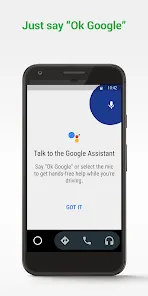
Voice-activated Google Assistant for hands-free control of calls, messages, navigation, and music.
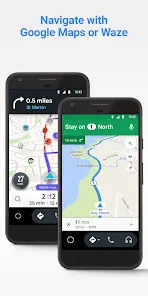
Real-time navigation with Google Maps, Waze, and other supported apps.
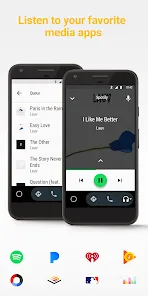
Access to popular music and podcast apps like Spotify, YouTube Music, and Pandora.
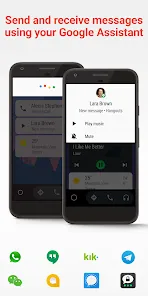
Text message reading and voice reply capabilities.
Support for phone calls with voice control and caller ID display.
Wired and wireless connectivity options for flexible use.
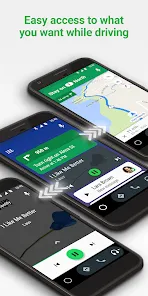
Automatic screen switching between phone and car display.
Customizable app shortcuts for quick access to favorite features.
Integration with vehicle sensors for safety alerts (where supported).
Functions
Connects Android smartphones to compatible car infotainment systems.
Enables voice-controlled navigation to destinations via Google Maps or Waze.
Allows hands-free music playback and media control from streaming apps.
Reads incoming messages aloud and allows voice replies without distraction.
Manages phone calls safely while driving using voice commands.
Displays essential information like time, weather, and notifications on the car screen.
Syncs phone contacts and call logs for seamless communication.
Supports integration with car sensors for safety warnings (e.g., speed alerts).
Automatically adjusts brightness and interface based on driving conditions.
Facilitates app switching without manual phone interaction to maintain focus on driving.
How to Use Android Auto
Click the button "Check All Versions" below to download and install it.
Step 1: Ensure your Android phone is running Android 6.0 (Marshmallow) or later.
Step 2: Download and install the Android Auto app from Google Play Store if not pre-installed.
Step 3: Check that your car’s infotainment system supports Android Auto (consult your car manual).
Step 4: Connect your phone to the car using a USB cable or via wireless connection if supported.
Step 5: Follow on-screen prompts on your phone and car display to grant permissions and set up Android Auto.
Step 6: Use voice commands by saying “Hey Google” or pressing the voice button on the steering wheel to control apps.
Step 7: Access navigation, music, calls, and messages directly from your car’s touchscreen or steering wheel controls.
Step 8: Customize app shortcuts and settings via the Android Auto app on your phone.
Step 9: Keep your phone connected while driving for real-time updates and notifications.
Step 10: Disconnect safely once you reach your destination to return to normal phone use.


 0
0